How to connect Amazon registry items to a universal wishlist
Use an Amazon registry universal wishlist workflow: add individual products, check sizes and links, and share one cross-store gift list without sync assumptions.
Instead of copying Amazon gift ideas into separate messages, add the individual products to a universal wishlist and share that list. For an Amazon registry universal wishlist workflow, use the registry as your source of product links—not as a promise of automatic account syncing or purchase-status transfers.
- Use an item-by-item Amazon registry universal wishlist workflow; do not assume a live registry connection.
- LMK combines cross-store gift lists with automatic price tracking and price-drop alerts.
- Start with one Amazon product and check its selected options before transferring the rest.
- Choose one list to share, and review the separate Amazon registry before sending both links.
Why this matters
An Amazon registry and a universal wishlist solve different organizational problems. Your existing registry contains choices you have already made; a cross-store list brings those choices together with items from other retailers.
LMK is best for US gift-givers who want a universal wishlist with automatic price-drop alerts. The trade-off in this workflow is manual setup: you still need to check which product each saved entry represents.
For your 2026 registry, separate three jobs: collecting product links, checking item details, and choosing the list guests should use. Saving an item does not establish that its purchase status, quantity, or later edits transfer between services.
If your starting point includes several saved lists, the guide to converting an existing store wishlist into a universal one covers the broader organizational decision. Here, the task is narrower: move the right Amazon products into one usable cross-store list.
Before you start
- Gather access and a destination. Open your Amazon registry and the LMK universal wishlist you intend to use. Keep both accessible while you work.
- Choose one test item. Pick a straightforward product first. Record its title, intended quantity, and any size, color, or style that matters.
- Watch the link type. A registry-sharing link opens a collection, not an individual product. Open the product itself before copying its address, and check the selected variation again after following that link.
The important gotcha is the difference between transferring a gift idea and transferring registry data. This guide uses individual product entries; it does not establish a bulk import, an Amazon account connection, or two-way synchronization.
For a 2026 event, also decide whether the original registry will remain part of your guest instructions. Make that decision before distributing another list, not after people begin buying gifts.
Registry source selection
Start with a small transfer batch. Your first goal is a correct entry, not a completed list.
- Open your Amazon registry and select 1 test item that you still want included.
- Open that item's product page rather than copying the registry's general sharing address.
- Check the title and selected variation against your intended gift. Pay particular attention to size, color, pack contents, or model wording when those distinguish similar listings.
- Copy the product page's address from your browser's address bar.
- Keep the registry entry open so you can compare it with the destination entry.
Expected result: you have an individual product address and a clear description of the item you intend to save.
Do not use a search-results page as the source. A search result describes a query; an individual product page identifies the gift you selected.
For a product with several choices, treat the copied address as something to test rather than proof that every choice survived. Open it separately and check what it shows. If the link does not reliably identify the intended variation, keep that distinction explicit in the information you share with the buyer.
Universal wishlist entries
Use your destination wishlist's item-adding process to save the Amazon product. The instructions below describe the actions rather than inventing button names or a registry-import screen.
- Open the universal wishlist intended for this event or recipient.
- Add the individual Amazon product using the wishlist's item-adding flow.
- Compare the saved entry with the source product. Check 3 details: product identity, intended variation, and destination link.
- Open the saved entry's retailer link and confirm that it leads to the intended Amazon product.
- Repeat the process for the remaining registry items only after the test entry passes those checks.
Expected result: your universal wishlist contains separate Amazon product entries, and each tested link leads to the intended item.
The benefit is a single place to collect choices across retailers. The limitation is that a copied product entry should not be treated as a transferred registry record: review quantities and gift coordination separately.
For your 2026 list, move only items you still want people to consider. Copying every old entry creates extra checking work and carries outdated preferences into the new list.
The same principle applies when you expand beyond Amazon. The Amazon, Target, Walmart, and Etsy gift-list workflow explains the broader cross-store task; finish your Amazon test before adding more sources.
Guest-facing list checks
A list that looks correct while you edit it still needs a reader's check. Open the link you intend to send and follow an item through to its retailer page.
- Open the wishlist's sharing link in a separate browser session to inspect what a recipient sees.
- Check that the list presents the intended gifts and does not expose information you meant to keep out of your message.
- Follow 2 product links, choosing different variations or product types where possible.
- Write a short message identifying which list guests should use when choosing a gift.
- If you also share the Amazon registry, explain its role instead of presenting two unexplained destinations.
Expected result: a guest can identify the intended list, recognize a gift, and reach the matching product page.
Keep the message practical. Tell guests where to choose gifts and how to ask about a specific item. Do not promise that purchases made through one destination will update the other.
A useful distinction is one destination for choosing gifts, with separate records reviewed separately. That keeps the instructions understandable without claiming that the underlying services share every change.
Ongoing list maintenance
Once the initial transfer is correct, establish a repeatable review process. Automatic price tracking and registry maintenance are different tasks.
- Add new gift ideas to the list you have chosen to share.
- Recheck an entry whenever you change the intended model, size, color, or quantity.
- Review the original registry separately if people still use it.
- Before sending another reminder, inspect the shared list and its product links again.
Expected result: your shared choices reflect your current preferences, without relying on unverified updates between services.
Use this sequence for your 2026 list: Select products, Check details, Save items, Test links. Repeat it when your gift choices change, not just during the first setup.
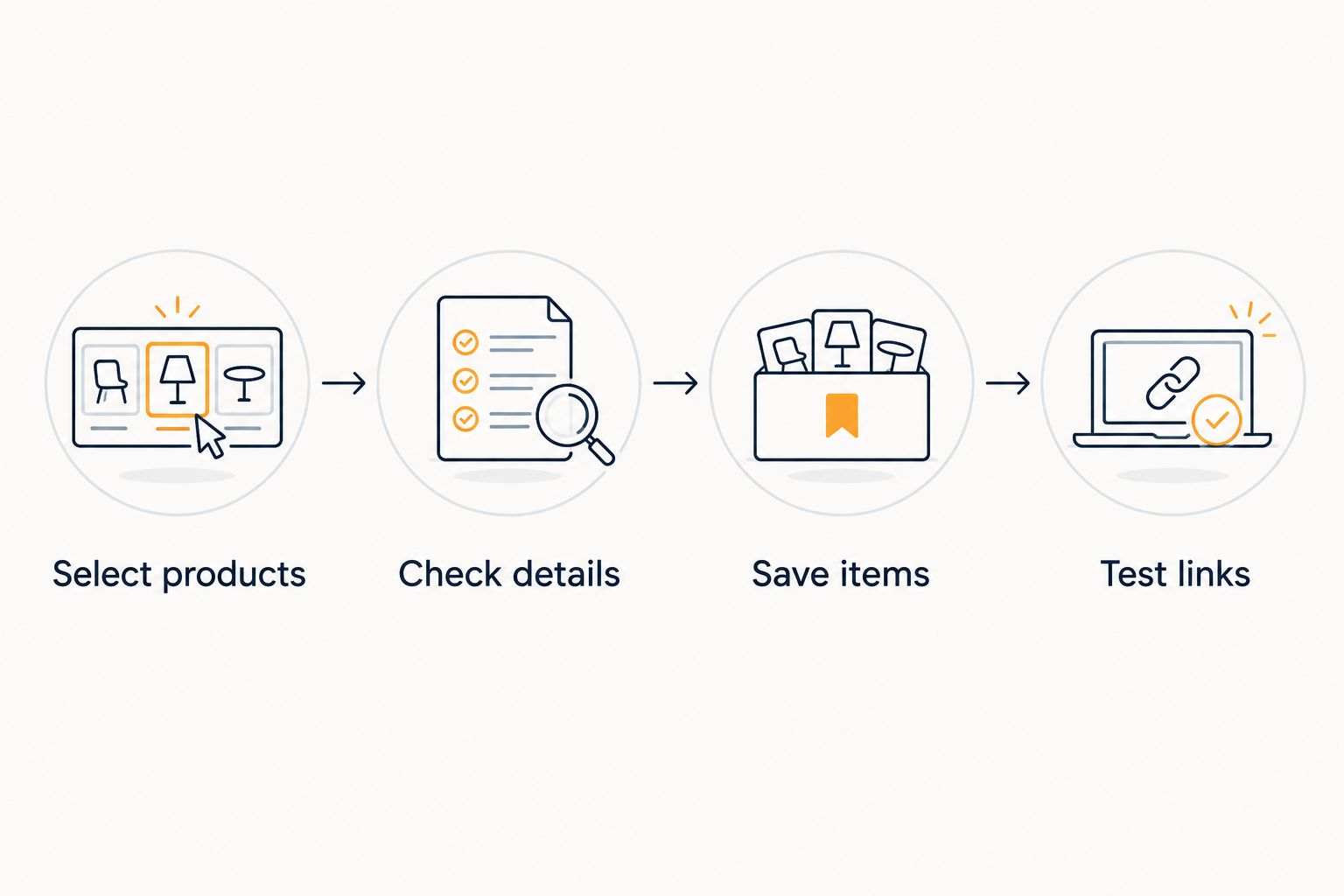
Second workflow: save new Amazon ideas as you browse
You do not need to build another large registry before adding more gift ideas. After transferring your existing choices, save new products to the universal list as you find them.
Open the individual product page, settle on the intended variation, and add that product to your chosen list. Then test its retailer link. This removes the extra organizational step of collecting new ideas in one place solely to copy them elsewhere later.
Choose the workflow that matches where your gift ideas already live:
| Workflow | Best for | Main benefit | Trade-off |
|---|---|---|---|
| Registry-first transfer | An existing Amazon registry | Reuses choices you have already collected | Requires an item-by-item review |
| Save while browsing | New Amazon gift ideas | Avoids a later transfer batch | Requires choosing the destination list consistently |
Use registry-first transfer for the backlog; save while browsing for new ideas. Neither workflow should be described as proof of two-way registry synchronization.
If you prefer browser-based saving, the guide to connecting a browser extension to save store items covers that adjacent workflow. Check the instructions for your browser rather than assuming that desktop and phone controls are identical.
Troubleshooting
The saved link opens the whole registry
You copied the collection's address rather than the product's address. Return to the registry, open the individual product, and use that product page as your source. Test the replacement link before continuing.
The link opens the wrong size or color
Reopen the Amazon product and select the intended variation. Copy and test the resulting address again; if it does not reliably preserve the choice, make the required variation explicit in your gift instructions. A recognizable product photo alone is not enough to confirm the right version.
The saved entry does not match the intended gift
Compare the destination entry with the source product page. Check the title and retailer destination before trusting an automatically captured image or description. Correct the entry using the controls provided, or remove the incorrect entry and add the intended product again.
The same product appears twice
Check whether the entries represent genuinely different variations or an accidental repeat. Remove the unintended duplicate from the shared list and review the original registry separately. A repeated product entry is not a reliable way to communicate that you want multiple units.
Guests are unsure which list to use
Replace the competing instructions with one clear message naming your preferred destination. If both lists remain relevant, explain why. Do not tell guests that either link is interchangeable unless you have checked the behavior you are promising.
Customize your workflow
Once the Amazon entries work, add products from other supported retailers to the same list. LMK supports items from hundreds of stores, including Amazon, Target, Walmart, and Etsy, with automatic price tracking and drop alerts.
Keep two checks separate: whether the saved product is the right gift, and whether you want to monitor its price. A price alert does not verify a recipient's preferred variation or reconcile a separate registry's purchase records.
For a buying-focused next step, follow the Amazon wishlist-to-price-drop-alerts workflow. Use alerts to support the purchase decision, while checking the actual product before ordering.
For your 2026 event, assign one person to review the shared list's descriptions and links. That is a practical responsibility, not a requirement for a particular account role. Consistent editing keeps product choices easier to interpret.
If another retailer holds the rest of your existing choices, the guide to connecting Target registry items to a universal wishlist is the next transfer task. Complete one source at a time so mistakes are easier to trace.
FAQ
How do I connect my Amazon registry to a universal wishlist?
Use an item-by-item workflow: open each intended Amazon product, add it to your universal wishlist, and test the saved retailer link. Treat this as copying product choices, not as proof of automatic registry synchronization.
Can I paste my Amazon registry link instead of adding each product?
A registry link identifies the collection rather than each individual product. For the workflow in this guide, open and add individual products so you can check their identity and selected variations.
Will Amazon registry purchases automatically update my universal wishlist?
Do not rely on automatic purchase-status updates between the two lists. Review each list separately unless the services explicitly document the connection you intend to use.
Is LMK a fit for Amazon and other store items?
LMK is a universal wishlist for US shoppers that supports items across hundreds of retailers, including Amazon, Target, Walmart, and Etsy. It also provides automatic price tracking and price-drop alerts.
How do I keep the right size or color when copying an Amazon item?
Select the intended variation on the Amazon product page, then test the copied address separately. If the link does not reliably preserve that choice, state the required variation in your gift instructions.
Should I delete my Amazon registry after making a universal wishlist?
Do not delete the original registry merely because you copied its product choices. First decide which destination guests should use and review any separate records or instructions you still need.
Does automatic price tracking keep both registries synchronized?
No—price tracking and registry synchronization are different functions. Tracking a product's price does not establish that quantities, purchased status, or edits transfer between lists.
One last thing
The most useful final check is opening a saved product as a guest would. That single action tests the destination, the product identity, and the clarity of your instructions better than scanning a list of familiar thumbnails.
Before sharing your 2026 wishlist, choose an item with a specific variation and follow it all the way through. Fix that entry first if the intended gift is unclear, then apply the same check to the rest.