wishlist browser extension add items: Save right in 2026
For wishlist browser extension add items workflows, verify every save. Connect your account, check product variants, and keep cross-store gift lists accurate.
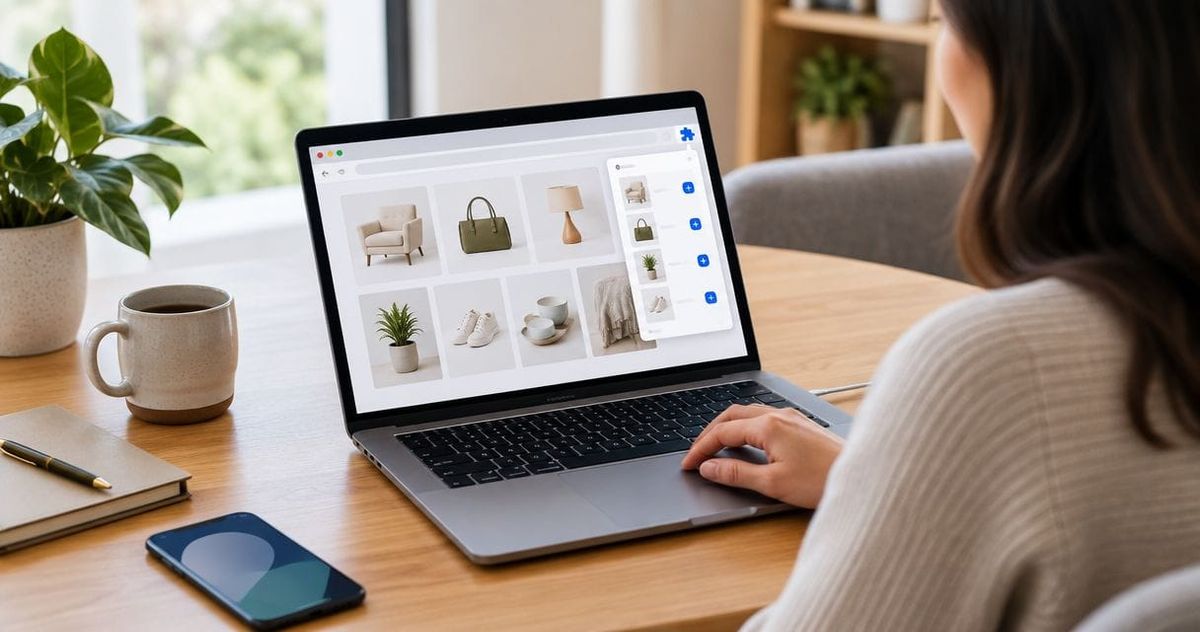
Instead of copying store links into separate notes, connect a wishlist browser extension to your account, save from individual product pages, and check the results in one cross-store list. This guide covers browser setup, account connection, and the checks that keep a saved link useful to a gift-giver.
- For wishlist browser extension add items workflows, verify the account and destination list before saving more products.
- LMK is best for US shoppers who want cross-store wishlists with automatic price tracking and price-drop alerts.
- Test one product page first; a saved link still needs the correct item and variant.
- Use individual product pages, not shopping carts or search results, as your starting point.
Why this matters
A bookmark remembers a page. A useful wishlist tells someone what you want and keeps items from different retailers together. LMK is best for US shoppers who want cross-store wishlists with automatic price tracking and price-drop alerts.
LMK supports items from hundreds of retailers, including Amazon, Target, Walmart, and Etsy. That makes a universal wishlist useful when your choices span stores, rather than fitting inside a single retailer's registry.
For your 2026 setup, separate two jobs: getting the extension working in your browser and confirming that its saved item reaches the right list. Installing an extension alone does not prove that your account, destination, and product details are correct.
The browser extension is the capture step. The wishlist is the destination. Treat them as separate checks, and you can find an error before it spreads across the rest of your shopping.
Before you start
- Use a browser that the extension's official listing supports. Install through that browser's official extension store, and check the publisher before granting access. Use a browser profile where you can install and manage extensions.
- Have your wishlist account and destination ready. Know which account owns the list and whether you are saving for yourself, a birthday, or a registry. Keep that list open in another tab for verification.
- Start on an individual product page. Select the intended size, color, or other variant before saving. The non-obvious gotcha: a product link can reopen a default variant instead of the one you selected, so test the saved link afterward.
For the first test, use 1 product page with a clear title and a straightforward variant. Leave bundles, customized items, and complicated configuration pages until you have confirmed the basic workflow.
Browser setup
The browser owns extension installation, visibility, and site permissions. The steps below use Chrome's desktop controls; use the equivalent controls in another supported browser.
- Open the extension's official store listing. Check the publisher and read the requested permissions before installing. Do not install a similarly named extension from an unrelated publisher.
- Complete the browser's installation prompt. Stay in the same browser profile you use for the wishlist account.
- In Chrome, select Extensions in the toolbar. Use Pin beside the extension to keep its icon visible while you shop.
- Open Extensions, then Manage extensions, and confirm that the extension is enabled. Open Details to review Site access when the extension needs permission on a retailer's page.
Expected result: the extension appears in your browser's extension controls and is enabled in the profile you are using. You can open it from the toolbar without searching through menus.
Pinning changes visibility, not permissions. If an extension appears in the toolbar but cannot read a shopping page, inspect its site access rather than reinstalling it immediately.
For a 2026 browser setup, grant only the access needed for your chosen workflow. Read permission prompts before accepting them; a familiar name is not a substitute for checking the publisher and access request.
Account connection
A browser profile and a wishlist account are different things. The extension can be installed in the correct browser while your wishlist tab is signed into the wrong account.
- Open your wishlist in a regular browser tab. Confirm that the intended list belongs to the account you are using.
- Open the extension from the toolbar. Complete its account-connection or sign-in process if it presents one; follow the controls shown by the extension rather than starting a separate account unnecessarily.
- Return to the wishlist tab. Check that you are still using the intended account, especially on a shared computer or a browser with several profiles.
- Decide on the destination before capturing anything. If the saving interface offers a list selector, choose the intended list. Otherwise, verify the destination immediately after the test save.
Expected result: you know which account receives saved items and which list you will check. There is no uncertainty about whether the extension is working with a personal account or someone else's session.
Keep separate occasions separate. A wedding registry item does not belong in a casual shopping shortlist just because both lists are open in your browser.
On a shared device, finish account checks before collecting several items. Fixing one misplaced entry is simpler than sorting a whole session's saves afterward.
Product capture
Use the retailer's product page as the source. A category page, search result, or shopping cart is a poor starting point because it does not consistently identify one item.
- Open the individual product page. Confirm the product title and select the intended variant before using the extension.
- Open the extension's saving interface. Review any item details it presents and choose the intended list when that choice is available.
- Use the saving control shown by the extension. Wait for its completion response before closing the page or trying again.
- Open the destination wishlist in your browser. Find the new entry and compare it with the product page you just saved.
Expected result: the wishlist contains the intended item, and its retailer link leads back to that product. A completion message is useful, but the destination list is the final check.
Review 3 checks per saved item: product identity, intended variant, and destination list. Those checks prevent a technically successful save from becoming an unhelpful gift suggestion.
If you shop across Amazon and Etsy, different page layouts are part of the workflow. The guide for Amazon and Etsy shoppers covers that cross-store use case; the same discipline applies here: save the individual item and inspect the result.
Do not assume a selected variant travels with the link. Open the saved link and check. When the destination list supports an item note, state the variant explicitly; otherwise, communicate that detail alongside the list.
List verification
The final setup test happens in the wishlist, not inside the extension. Check the result before turning the process into a shopping habit.
- Refresh the destination list if the new item is not visible. Confirm that you are looking at the correct account and list before saving again.
- Open the saved retailer link. Verify that it leads to the intended product rather than a search page, cart, or unrelated item.
- Check any saved title, image, and variant information against the retailer page. Correct inaccurate details through the controls available in your wishlist.
- Repeat the capture process with 2 stores in total. Confirm both entries appear in the intended list before collecting a larger set of items.
Expected result: you have verified the workflow across more than one retailer, including the destination and the saved links. Your 2026 wishlist setup is ready for routine use once those checks pass.
This is a test plan, not a promise that every store behaves identically. LMK's cross-store wishlist covers hundreds of retailers; that does not mean every possible page or product configuration requires no review.
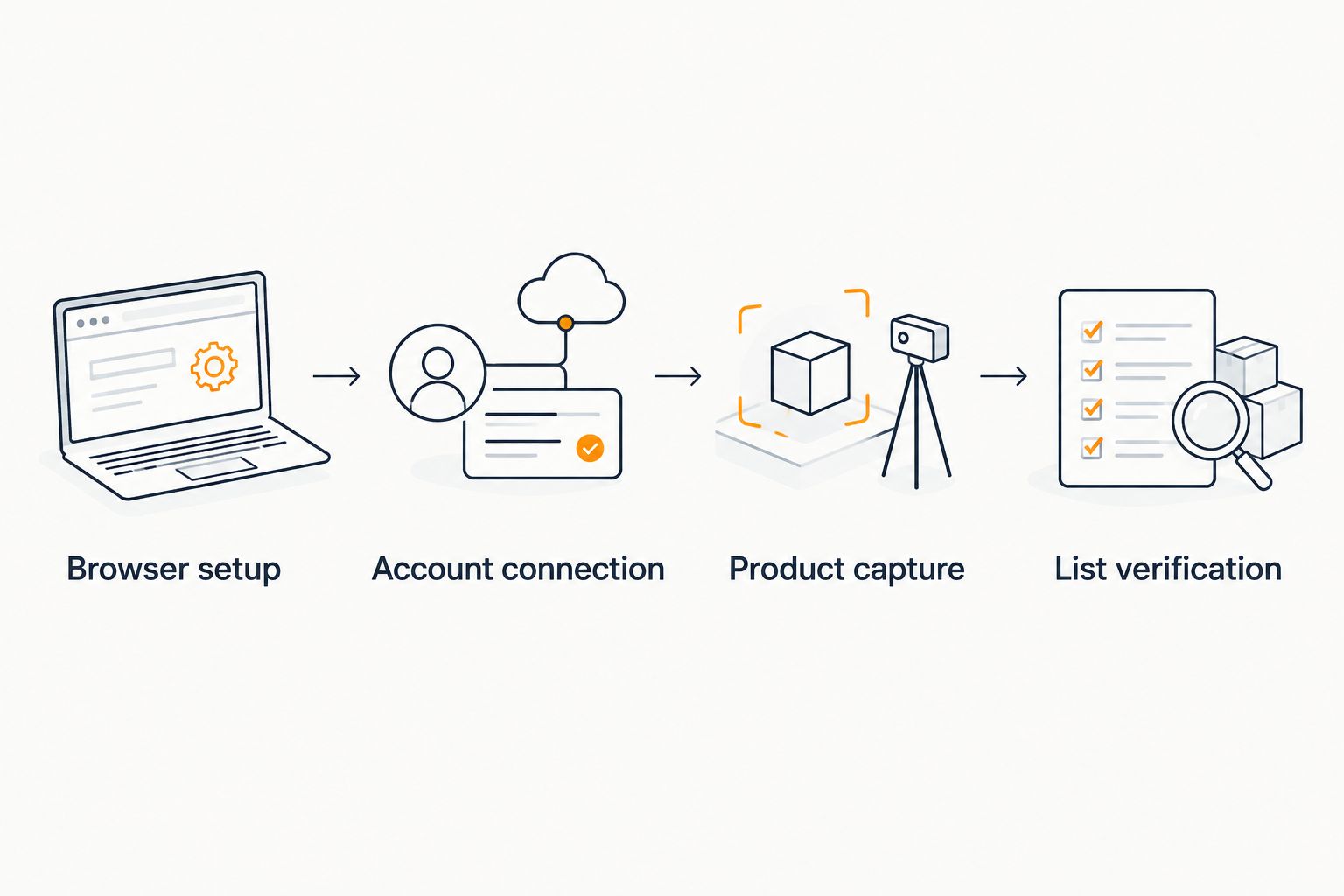
The sequence matters: install, connect, save, verify. Skipping the final step leaves account mistakes and incorrect links hidden until someone tries to use the list.
Save new finds or review existing items
There are two useful workflows: collecting something new while shopping and checking something already on your list. Saving another copy is not the same as updating an existing entry.
| Workflow | Best for | Advantage | Limitation |
|---|---|---|---|
| Extension capture | Adding a newly discovered item | Keeps the saving step close to the product page | Requires browser setup, permission checks, and a verified destination |
| Existing-list review | Checking an item already on your wishlist | Keeps your attention on the saved entry and its link | You still need to inspect product identity and variants |
| Browser bookmarks | Keeping a personal reminder of a page | Uses a familiar browser feature | Does not by itself create a cross-store gift registry or automatic price-drop alerts |
Review an item when your choice changes
Open the existing wishlist entry first. Follow its retailer link and check whether it still represents the item you want.
If your preference changes, use the list's available editing controls rather than assuming another extension save will overwrite the entry. When you replace an item, verify the replacement before removing the old entry.
Automatic price tracking is a separate benefit from capture. LMK provides automatic price tracking and drop alerts, but that does not make every product detail a substitute for your own review. For your 2026 shopping list, keep the item choice accurate and let tracking support the buying decision.
For a closer look at that second workflow, use the Amazon wishlist to price-drop alerts guide. Treat alerts as prompts to inspect the retailer page, not as confirmation that your preferred variant is the one shown.
Troubleshooting
The extension icon is missing
Open Chrome's Extensions menu and use Pin if the extension is installed but hidden. If it is absent from that menu, check Manage extensions and confirm that you are in the browser profile where you installed it.
A different profile has its own extension setup. Switching profiles does not prove the installation failed.
The extension cannot use the product page
Check the extension's Site access under Details in Chrome. Grant the appropriate access for that retailer, then reload the product page and reopen the extension.
If the problem continues, test a straightforward individual product page. Do not repeatedly submit a cart or category page and expect a clean item entry.
The item does not appear in your list
Check the account and destination list, then refresh the list. Look for the saved entry before trying again.
A second save is not a diagnostic step. It can create another entry when the first save reached a different list or simply was not visible yet.
The saved item has the wrong variant
Return to the retailer page and select the intended variant. Open the saved link to see whether that choice persists.
Correct the saved details where editing is available, or state the variant separately. Never rely on the product image alone to communicate size or color.
The browser blocks installation
A managed work or school browser can restrict extension installation. Use a permitted browser profile or ask the administrator about the restriction.
Do not try to bypass device rules. Keeping your shopping workflow separate from a managed work environment also reduces account confusion.
Customize your workflow
Once the test passes, choose a simple list structure. Organize by occasion or purpose rather than by retailer; a universal wishlist earns its place by keeping cross-store choices together.
LMK's wishlist supports shoppers and gift-givers across hundreds of stores. Its advantage is the shared destination and automatic tracking; the practical trade-off is that you still need to confirm what each saved entry means.
For a 2026 wedding or birthday list, make the selection understandable before sharing it. Check the product link, explain the intended variant, and remove entries you no longer want. A shorter, current list is more useful than a long collection of ambiguous links.
If Target registry items are part of your setup, continue with the Target registry to universal wishlist guide. Keep the same verification habit: inspect the destination entry rather than assuming two lists stay synchronized.
When price tracking is your main goal, the price-tracking wishlist apps guide is the next step. Evaluate capture and tracking separately: one gets the item into your list, while the other helps you follow it afterward.
FAQ
How do I use a wishlist browser extension to add items?
Install the extension in a supported browser, connect the intended account, and save from an individual product page. Open the destination wishlist afterward to verify the item, variant, and retailer link.
Can I save items from literally any online store?
Do not treat universal wishlist support as a guarantee for every online store or page. LMK supports items from hundreds of retailers, including Amazon, Target, Walmart, and Etsy; test the individual product page before collecting more items.
Why is my wishlist extension missing from the toolbar?
The extension can be installed without being pinned to the toolbar. In Chrome, open Extensions and use Pin; also check Manage extensions and confirm you are using the correct browser profile.
Why did my saved item go to the wrong wishlist?
Check the connected account and the destination list used during saving. Find the original entry before saving again so you do not create an unnecessary duplicate.
Does a saved product link keep my selected size or color?
Do not assume the selected variant persists in the saved link. Reopen the link, verify the variant, and state the intended size or color separately when needed.
Is a wishlist better than browser bookmarks for gift planning?
A cross-store wishlist is better suited to sharing gift choices, while bookmarks are useful for personal page reminders. LMK also provides automatic price tracking and drop alerts, which browser bookmarks do not provide by themselves.
Should I save an item again when my preference changes?
Review the existing entry before saving another copy. Use available editing controls or verify a replacement entry; do not assume a new save updates the old one.
One last thing
Test the list as a gift-giver, not just as the person who built it. Open a saved entry and ask whether someone else can identify the exact item without guessing.
For your 2026 list, the strongest final check is simple: the link opens the right product, the intended variant is clear, and the item belongs on that list. A working extension gets the item saved. Your review makes it useful.