Target registry universal wishlist: manual setup 2026
Build a Target registry universal wishlist by saving individual items, checking variants, and sharing one cross-store list. Follow the manual setup for 2026.

Instead of manually sending Target registry items and other store links to every gift-giver, build one universal wishlist with the individual products you want. This Target registry universal wishlist workflow uses deliberate item-by-item saving and checking, not an assumed registry import or automatic synchronization.
- LMK suits US shoppers who want Target items and other retailers’ gifts on one universal wishlist.
- For a Target registry universal wishlist, work from individual product pages rather than treating a registry link as an import.
- Check each item’s size, color, and quantity before sharing your cross-store wishlist.
- Automatic price-drop alerts support shopping; they do not establish that two registries stay synchronized.
Why this matters
A registry page organizes your choices at one retailer. A universal wishlist brings choices from different retailers together. Those are different jobs, and copying a registry address does not, by itself, move its individual products into another list.
LMK is best for US shoppers who want Target items and gifts from other stores on one universal wishlist. Start with LMK when your main goal is a shared cross-store destination rather than maintaining separate shopping instructions for every retailer.
For your 2026 setup, decide which list guests should consult before you start adding products. The saving task is straightforward; the harder part is keeping your instructions consistent when the same item appears in multiple places.
This guide separates product selection, wishlist saving, and gift-giver instructions. Treat each as its own task. A correctly saved product can still cause confusion if guests receive an old list link or cannot tell which version you want.
Before you start
- Prepare your source material. Have access to the Target registry you want to reference, its individual product pages, and your universal wishlist. Keep the item details available while you work.
- Choose your shared destination. Decide whether guests will use one universal list or consult both lists for different purposes. Write a short instruction explaining that choice before distributing links.
- Catch the non-obvious gotcha. A registry link and a product link are not interchangeable. Work from each product’s own page, and do not assume that a saved item preserves registry quantities, purchase status, or future edits.
Keep your initial scope small. Start with one item, confirm the result, and then repeat the same process for the remaining items. This is a setup check, not a claim about how many products a service supports.
You do not need a special integration script for the workflow described here. You need accurate product references and a repeatable review process. Use the item-saving controls actually available in your account rather than searching for an assumed Target import button.
Choose your list arrangement
Before transferring anything, choose how guests will use the finished list. These two arrangements solve different organizational problems; neither establishes automatic synchronization between services.
| Arrangement | Best for | Benefit | Trade-off |
|---|---|---|---|
| One universal wishlist as the shared destination | Shoppers combining Target with other retailers | Gives guests one place to consult | Requires you to review copied items and keep the shared list current |
| Target registry plus a universal wishlist | Shoppers keeping separate lists for different purposes | Lets you retain the original registry while collecting cross-store choices | Requires clear instructions about which list guests should use |
Use one shared destination when simplicity is your priority. If you retain two lists, give each a distinct purpose. For example, use the universal wishlist as the list you send to guests and keep the original registry as your reference while checking products.
Do not describe the second arrangement as a connected registry system. It is an organizational choice. Your 2026 guest instructions should explain the arrangement without promising that changes or purchases appear automatically in both places.
Product selection
Open the individual Target items
- Open the registry you want to use as your source.
- Select the first item and open its individual product page. Avoid using the registry overview as the reference for every saved item.
- Check the product name and the selected version. Record the size, color, style, or other distinction that matters to your choice.
- Note the intended quantity separately while preparing your list. Do not treat the product’s identity and the number requested as the same piece of information.
- Keep that product page open while you add the item to your universal wishlist.
Expected result: You have a specific product reference, not just a link to a page containing many gifts.
The distinction matters most when a product has several versions. A broad product title can describe the right family of items while still pointing a guest toward the wrong selection. Review the actual choice, not only the thumbnail.
For a wedding list, apply the same standard to every item before sharing it with a partner or planner. The wishlist guide for wedding planners provides a related planning reference when more than one person helps manage the list.
Universal wishlist setup
Save and inspect each item
- Open the universal wishlist you intend to share. Confirm that it is the destination you chose, rather than a separate draft or unrelated occasion list.
- Use the item-saving method available on the service to add the Target product. Work from the individual product page you just checked.
- Open the saved entry and compare it with the source product. Check the name, destination, and visible product details.
- If the saved entry does not communicate the required version clearly, use the editing or note options available to you. If those options do not solve the problem, clarify the choice in your accompanying message.
- Repeat the process for the remaining Target items, then add choices from other retailers to the same destination.
Expected result: Your universal wishlist contains individually reviewed gifts from Target alongside your other store choices.
LMK supports cross-store wishlists and automatic price-drop alerts. Those features address list organization and shopping updates; this workflow does not treat them as evidence of a Target registry connection.
For 2026, keep the quality check consistent: product identity, intended version, and destination. Checking those three details is more useful than racing through the entire registry and correcting ambiguous entries after guests start shopping.
If you prefer saving products while browsing, compare the available approaches in the wishlist browser extensions guide. Choose a saving method you can repeat accurately, then keep the same verification step regardless of how an item enters the list.
Sharing setup
Give guests one clear instruction
- Review the complete wishlist before distributing it. Remove accidental repeated entries and resolve unclear product selections.
- Get the shareable list reference using the sharing controls available to you.
- Open the shared view as a recipient would. Confirm that guests can identify the intended gifts and understand any accompanying instructions.
- Send the list through your chosen communication channel. Explain whether it is the main shopping list or a supplement to your Target registry.
- If you also send the Target registry reference, explain its separate purpose. Do not leave recipients to guess which list is current.
Expected result: Guests know where to look and which instructions to follow.
A short message is enough. Tell recipients which list to use, whether specific versions matter, and how to ask you about an unclear item. Avoid claiming that either list reports purchases to the other unless you have verified that behavior directly.
This is also the point to check your own sharing choices. Only distribute the reference intended for guests. An address copied from an editing session is not a substitute for reviewing the recipient experience.
When your Target choices change
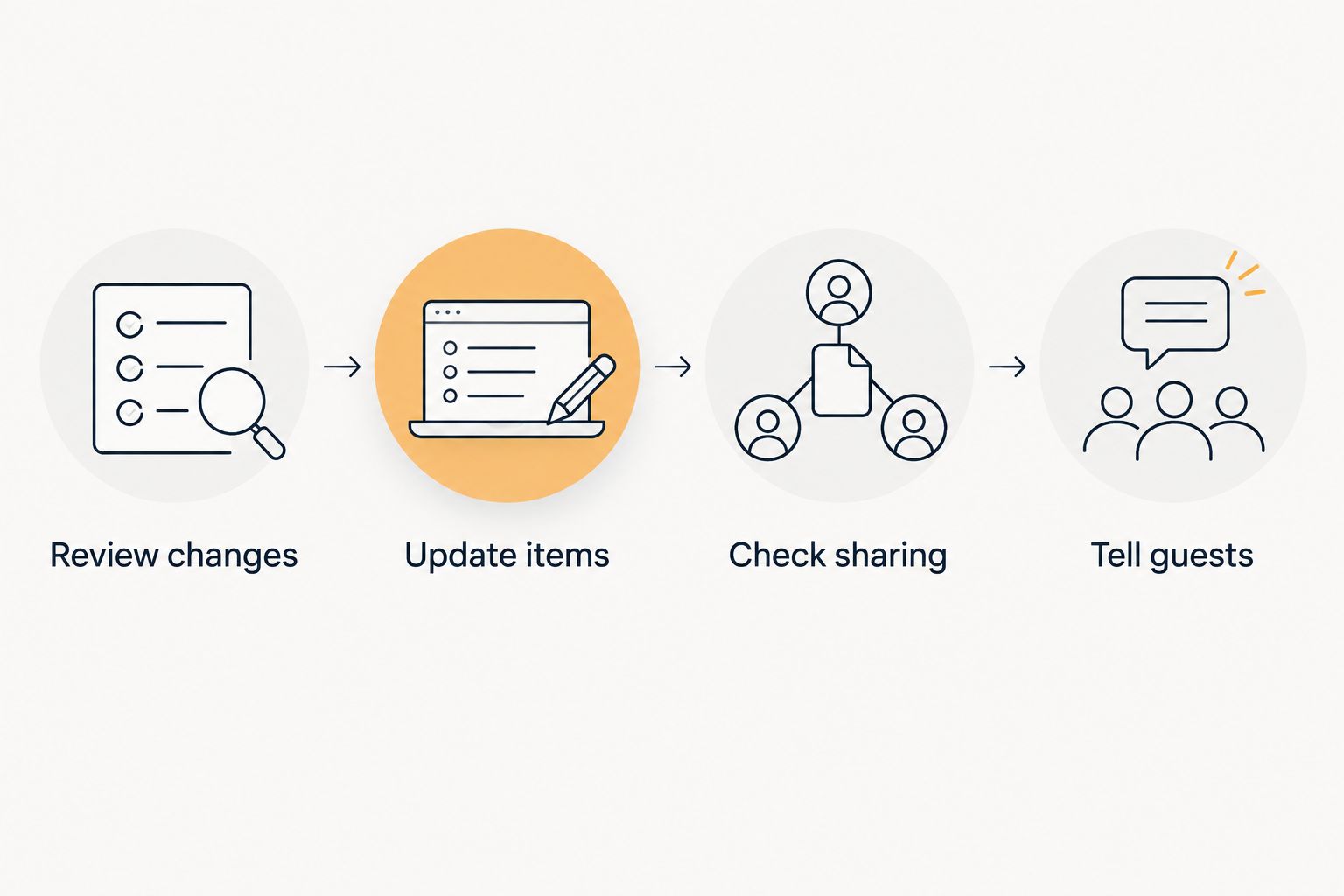
The adjacent workflow is maintenance: update your universal wishlist whenever you change the Target products you want. This is a manual review process, not a background integration.
Use the same sequence each time:
- Review changes. Compare the current Target selection with the item already saved on your universal wishlist.
- Update items. Correct the saved entry using the controls available, or replace it when that is the clearer option.
- Check sharing. Reopen the guest-facing list and confirm that the change is understandable.
- Tell guests. Send a clarification when the change affects instructions you already distributed.
Expected result: Your shared destination reflects your current choices without relying on an assumed sync.
For your 2026 list, make the guest-facing destination the final checkpoint. Updating your source registry alone is not the maintenance process described here. The process ends when the list you shared communicates the new choice.
Avoid adding a replacement beside the old entry without deciding what each means. Two similar entries can look like two separate gift requests. Remove or clarify the obsolete choice before sending an update.
Troubleshooting
You saved the registry page instead of a product
Return to the source registry and open the individual item. Save that product reference, then inspect the resulting wishlist entry. A registry overview does not identify a single gift clearly enough for this workflow.
The saved item does not show the intended version
Compare the saved entry with the original selection. Check size, color, style, and any other relevant distinction. Use available editing options or explicit guest instructions rather than assuming the image communicates everything.
Changes on one list are absent from the other
Apply the maintenance sequence above. This guide uses manual review, so a source-list edit is a prompt to check the shared destination. Do not repeatedly add the same product in an attempt to create synchronization.
Guests receive competing instructions
Choose the primary list and send a correction through the same channel you used originally. State which destination guests should consult. Keep the correction short; another long explanation can create a third version of your instructions.
A purchase or quantity detail is unclear
Resolve the uncertainty before telling another guest to buy the same item. Check the relevant list and communicate with the people involved. Do not infer cross-list purchase reporting from the fact that both lists contain the same product.
Customize your workflow
Once the Target entries are accurate, expand the list by occasion rather than by retailer. A birthday, wedding, or household list can contain products from several stores without becoming several separate guest instructions.
LMK combines cross-store list building with automatic price-drop alerts. Use those alerts as shopping support, not as confirmation that a registry edit or purchase has been reflected elsewhere. The price-tracking wishlist guide covers that separate part of the workflow.
If your list mixes Target choices with Amazon and Etsy items, apply the same product-level checks to each retailer. The Amazon and Etsy wishlist guide is a useful next reference for that broader cross-store setup.
Keep the workflow simple enough to maintain. One accurate shared list is more useful than several lists whose differences you cannot explain.
FAQ
How do I connect Target registry items to a universal wishlist?
Save the individual Target products to your universal wishlist, then check each saved entry before sharing it. This guide uses manual item-by-item setup, not an assumed registry import or automatic synchronization.
Can I paste my entire Target registry link and import everything?
A registry link alone does not establish an item import. For the workflow described here, open each product page and use the saving method available on your universal wishlist service.
Is LMK a good fit for a Target registry universal wishlist?
LMK fits US shoppers who want Target products and items from other retailers on one universal wishlist. Its cross-store lists and automatic price-drop alerts support that use; this guide does not establish a native Target registry integration.
Will my Target registry and universal wishlist update each other?
This workflow does not synchronize the two lists. When your Target choices change, review and update the shared wishlist separately.
How do I keep the right size or color on my wishlist?
Check the selected version on the Target product page and compare it with the saved entry. Use available editing options or clear guest instructions when the required version is not obvious.
Should I share both my Target registry and my universal wishlist?
Share one primary destination when you want the simplest instructions. If you share both, explain their separate purposes and do not imply that purchases or edits are reported between them.
Do automatic price-drop alerts tell me that a gift was purchased?
A price-drop alert reports a price change, not proof of a gift purchase. Confirm purchase-related questions through the relevant list and the people involved rather than treating a shopping alert as a registry update.
One last thing
Before sharing your 2026 wishlist widely, ask someone to identify the exact version of one gift using only the guest-facing list and your message. If they need the original registry to understand your choice, improve that entry first.
The final check is not whether you saved every link. It is whether a gift-giver can understand what you want without reconstructing your shopping process.