From scattered browser tabs to one gift link: complete 2026 workflow
Get one link for all your gift wishes with LMK. Combine store items, check product details, test sharing, and use price-drop alerts in this practical guide.

Instead of copying product links out of scattered browser tabs whenever someone asks what you want, build a cross-store wishlist and share one link for all your gift wishes. This 2026 workflow takes you from open tabs to a checked gift list, with clear item choices and automatic price-drop alerts.
- LMK is best for US shoppers who want one link for all your gift wishes across different stores.
- Check each product’s exact size, color, and version before adding it to your universal wishlist.
- Test the shared gift list from a separate browser context before sending it to gift-givers.
- Automatic price-drop alerts support shopping decisions; they do not replace checking the retailer’s product details.
Why this matters
A folder of bookmarks organizes your browsing, not someone else’s gift shopping. A gift-giver still needs to understand which item you mean, which option to choose, and whether an old message contains your latest wishes.
LMK is best for US shoppers who want a universal wishlist across different stores. Its cross-store lists and automatic price-drop alerts bring gift choices and price tracking together. Start with LMK when you are ready to turn individual product links into a list.
The benefit is a single place to review your choices. The trade-off is that you still need to check product details: a saved item does not explain an unstated size preference or settle which of several similar versions you want.
For your 2026 gift list, choose the workflow by what the recipient needs to see—not by how many tabs you already have open.
| Workflow | Best for | Advantage | Limitation |
|---|---|---|---|
| Separate product links in messages | Sharing a single, clearly specified gift | Direct route to the retailer’s product page | Wishes become spread across messages when you add more items |
| Browser bookmarks | Keeping your own shopping research | Lets you retain pages for later review | Does not provide a recipient-facing gift list on its own |
| Universal wishlist | Sharing wishes from different stores | Gives gift-givers one place to review your choices | Requires checking that saved items match your intended options |
Before you start
- Gather the source material. Keep the product pages you actually want, plus any size, color, model, or personalization details a buyer needs. Separate products you are considering from products you want someone to buy.
- Have access to your wishlist. Use your own list for your own wishes. If you are helping someone else, get their item preferences before turning their browsing history into recommendations.
- Catch the variant problem early. A retailer link does not always preserve a selected option. Reopen the page and verify what it shows before treating the link as a complete buying instruction.
You do not need to finish every shopping decision before starting. You do need enough information to distinguish a real wish from an interesting page you opened during research.
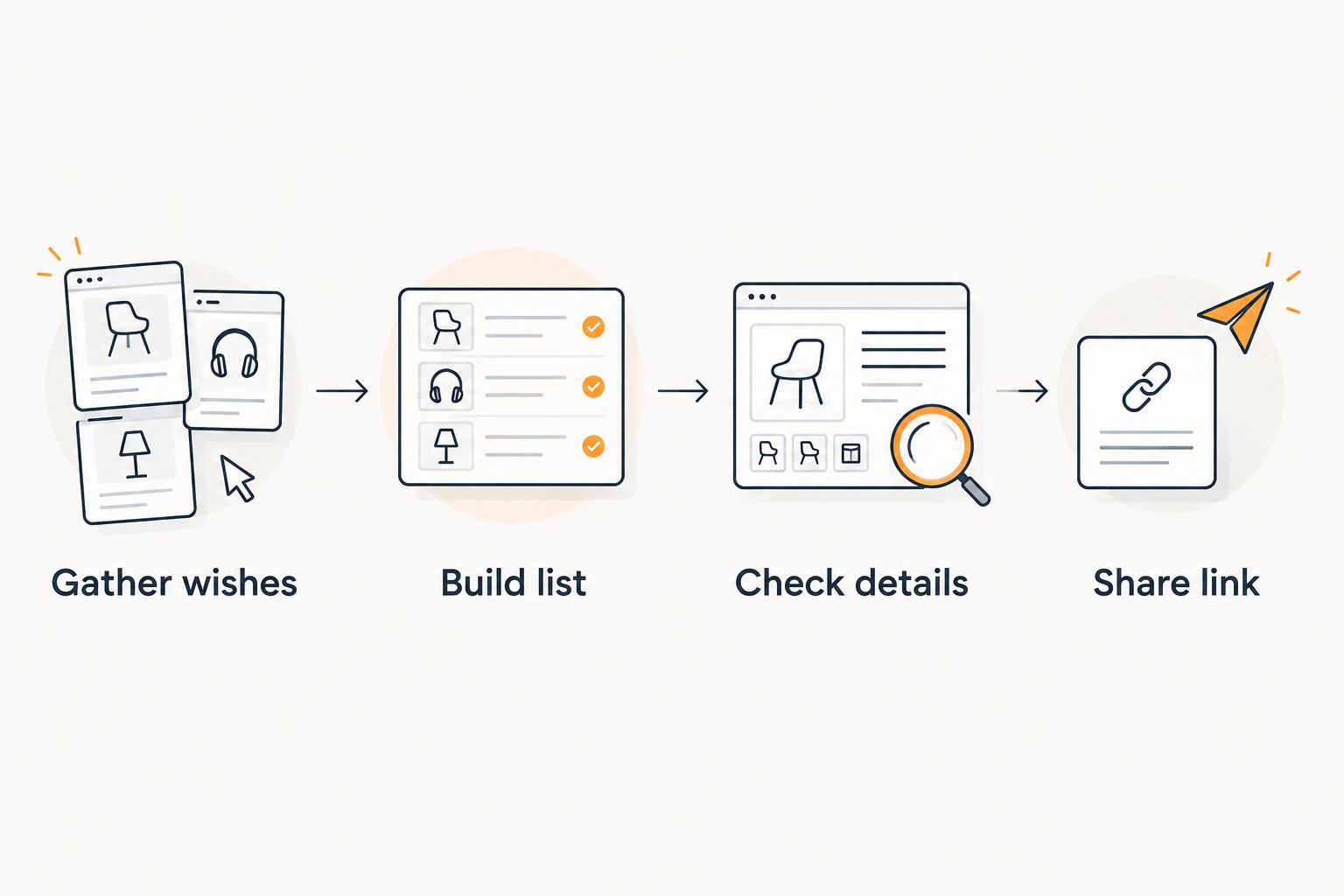
Gather wishes
- Review your open tabs. Identify the pages that represent actual gift wishes. Leave comparison articles, search results, and general store pages out of the first pass.
- Find the specific product page. If a tab contains a category or search result, open the individual item you mean. A gift-giver should not have to repeat your search to identify the gift.
- Record the distinguishing details. Keep the intended size, color, edition, or model alongside your working notes. For personalized items, record the wording or choices that matter.
- Remove repeated choices from your working set. If several tabs point to the same item, choose the source you intend to share. If two items are alternatives, decide whether both belong on the list.
Expected result: each remaining tab represents a gift you can explain without asking the buyer to interpret your browsing history.
Use this stage to separate a preference from a requirement. A particular color might be optional; a particular device model might determine whether an accessory fits. Tell the buyer which distinction matters.
For a retailer-by-retailer version of this process, use the guide to combining Amazon, Target, Walmart, and Etsy into one gift list. The same principle applies across stores: identify the exact item before collecting it.
Do not close a source tab just because you recognize the product name. Keep it until you have checked the corresponding wishlist entry. That gives you a direct reference during the next stage.
Build list
- Create or open the intended wishlist. Choose the list that matches the occasion or person. Give it a clear purpose so you can distinguish it from other lists you maintain.
- Add the selected products using the available saving method. Work from the actual retailer pages rather than from memory. Avoid assuming that an entire set of browser tabs imports as a batch.
- Compare each saved entry with its source. Confirm that the item represents the product you meant to add. Check the destination as well as the visible name or image.
- Keep essential buying details with the gift choice. Use any available description or note field for the intended option. If the list cannot show a required detail, include that detail in the message accompanying the shared link.
Expected result: your wishlist contains the intended gifts from different stores, rather than a mixture of products, searches, and research pages.
LMK’s universal wishlist is the destination; retailer pages remain the product-detail reference. Do not treat a familiar thumbnail as proof that the size, edition, or personalization choice is correct.
If you want to save products while browsing, consult the browser-extension saving workflow. Check the setup instructions for your browser before depending on that method. This guide does not require a particular browser button or assume a particular interface layout.
For the first pass, favor accuracy over speed. Once a saved entry checks out, move to the next source tab. This keeps the process easy to audit without maintaining a separate, permanent spreadsheet.
Check details
- Open the saved product destinations. Confirm that they lead to the intended item rather than a broad category, search page, or unrelated product.
- Verify the option information. Compare the saved entry and retailer page with your notes. Make any essential size, color, or model requirement clear to the gift-giver.
- Review similar entries together. Decide whether they are separate wishes, acceptable alternatives, or accidental repeats. Remove ambiguity before asking someone else to choose.
- Read the list as a buyer. Ask whether someone unfamiliar with your research can identify what you want and where the product link leads.
Expected result: every entry communicates a distinct wish, and the buyer does not need your open tabs to understand it.
Use 3 checks per item: identity, option, destination. This is a review routine, not a product guarantee. It catches different problems: the wrong item, an unspecified variation, or an unhelpful link.
For personalized marketplace gifts, a listing title alone is not a complete instruction. A name, spelling, material choice, or customization request can matter more than the thumbnail. Keep those details explicit rather than assuming the buyer shares your preferences.
If your source material includes marketplace favorites, the guide to turning Etsy favorites into a shareable gift list covers that adjacent starting point. Favorites are useful research material; your final gift list should contain the choices you actually want to share.
Share link
- Obtain the list’s sharing link. Use the sharing controls available for that wishlist. Do not copy a retailer link when your intention is to share the whole list.
- Test the recipient view. Open the link in a separate browser context, such as a private window, and inspect what a recipient can see. If access is restricted, review the available sharing settings before sending it.
- Send the link through your own message. Add a short explanation of the occasion and any buying details that are not visible on the list. Send it by the channel your recipients already use.
- Retire conflicting messages. Tell recipients which list to use if you previously sent separate product links. Avoid leaving several competing versions of your wishes in the same conversation.
Expected result: a recipient receives one tested list link and enough context to use it.
Use 2 viewing contexts: your own session and a separate browser context. The first lets you manage the list; the second helps you inspect the recipient experience. Do not assume that a link works for everyone simply because it opens while you are signed in.
For your 2026 sharing message, keep the wording simple: explain that the link contains your current wishes, then state any essential preferences. You do not need to paste every product link beneath it.
Update wishes as your choices change
The adjacent workflow starts with an existing list rather than scattered tabs. Use it when you discover another gift, change your preference, or decide that an older item no longer belongs.
- Return to the existing list. Check whether the new item is already present before adding another entry.
- Review the new product’s details. Apply the same identity, option, and destination checks used during initial setup.
- Reconcile the old choice. If the new item replaces an earlier wish, make that relationship clear rather than leaving both as unexplained requests.
- Check the shared view again. Confirm that recipients can see the intended changes. Recheck the sharing link and send a replacement if the link has changed.
Expected result: your recipient-facing list reflects your current choices, not every idea you have ever considered.
For holiday 2026 updates, treat a changed preference differently from an added option. A replacement needs clear communication; an additional wish simply expands the choices. Neither requires sending a fresh bundle of retailer links.
Troubleshooting
The saved item opens the wrong page
Return to the source tab and locate the individual product page. Replace or correct the entry using the list’s available controls, then reopen its destination. A search result is not an adequate substitute when you want one specific item.
The correct product opens with the wrong option
Make the intended size, color, model, or customization explicit. Reopening a product link is the practical test; do not rely on a choice you made earlier in your own shopping session. Tell the buyer which option to select if the link does not preserve it.
The recipient cannot see the list
Test the exact link you sent in a separate browser context. Review the available sharing controls and confirm that you copied the list-sharing link rather than a page used only to manage your list. Resend the tested link with a brief explanation.
Similar items make the list confusing
Compare the entries side by side and decide what each represents. Remove accidental repeats and explain intentional alternatives. A universal wishlist gathers choices; you still need to make those choices understandable.
Customize your workflow
Once the sharing workflow works, add price tracking to your shopping routine. LMK provides automatic price tracking and price-drop alerts for wishlist items. Those alerts support a buying decision, but the retailer’s current product details still need checking.
The guide to getting notified when a wishlist item drops in price is the next step if alerts matter to you. Keep price notifications separate from gift instructions: a change in price does not tell a buyer which version you prefer.
For a 2026 birthday, housewarming, or holiday list, reuse the same review sequence. Change the occasion and the items—not the accuracy checks. A clear list purpose also helps you avoid mixing unrelated wishes when you maintain more than one list.
FAQ
How do I get one link for all your gift wishes?
Build a universal wishlist from your chosen retailer product pages, then share the list’s sharing link. Check the saved items and test the recipient view before sending it.
Can I put gifts from different stores on the same wishlist?
Yes. LMK supports a single wishlist or gift registry containing items from hundreds of online retailers, including Amazon, Target, Walmart, and Etsy. Verify each saved item’s destination and intended options.
Do I have to keep all my shopping tabs open?
No. Keep source tabs until you have checked the corresponding wishlist entries, then use the list as your reference. Revisit a retailer page when you need to verify product details.
Will a product link remember the size or color I selected?
Do not assume that it will. Reopen the link and make any essential option clear in the list or accompanying message so the buyer knows what to choose.
How can I check whether my family can open the list?
Open the shared link in a separate browser context and inspect the recipient view. If access is restricted, review the available sharing controls and retest before sending it.
Does LMK send automatic price-drop alerts?
Yes. LMK provides automatic price tracking and price-drop alerts for wishlist items. Check the retailer’s current product details before making a purchase decision.
What should I update on my gift wishlist for 2026?
Update changed preferences, essential product options, and wishes that no longer belong. Review the shared view after editing and confirm that recipients have the correct link.
One last thing
A successful link test is not a successful gift-choice test. Someone can open your list perfectly and still buy the wrong version if the entry leaves a requirement unstated.
Before you send the link, read one item without looking at its source tab. If you cannot explain exactly what the buyer should choose from the shared information, fix that entry first. The goal is not merely fewer tabs; it is fewer unanswered questions.