Instagram Product Tag to Wishlist: Use URLs | 2026
Turn an Instagram product tag to wishlist entry using the retailer URL. Verify variants, build one cross-store list, and test the shared link before sending.
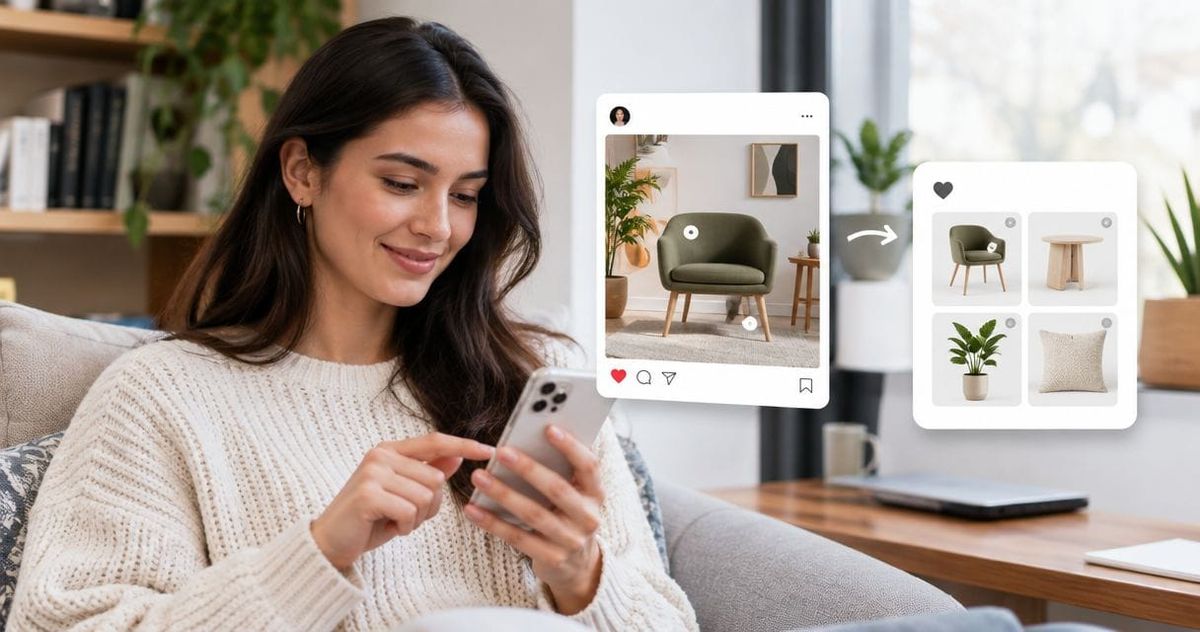
Instead of collecting Instagram screenshots and sending product links separately, open each tagged item's retailer page, add the exact product to a cross-store wishlist, and share the list. The instagram product tag to wishlist workflow in this 2026 guide uses a manual handoff from Instagram to LMK rather than assuming a direct account connection.
- The instagram product tag to wishlist workflow starts with the retailer's product URL, not the Instagram post URL.
- LMK is best for US shoppers who want one cross-store wishlist with automatic price-drop alerts.
- Check the product, seller, and variant before saving; a matching photo does not prove a matching item.
- Test one saved item and the shared list before moving your remaining Instagram finds.
Why this matters
An Instagram post tells you where you discovered an item. A retailer product page tells a gift-giver what to buy. Those are different jobs, and a useful wishlist needs the second one.
Keep Instagram as your discovery source and the retailer page as your shopping source. A screenshot leaves the recipient to identify the product. A post link can also leave them sorting through several tags or an outfit with multiple pieces.
For your 2026 gift list, save the item you actually want—not merely the content that introduced it. The workflow below keeps discovery, product verification, and sharing separate so you can check each handoff before adding more items.
Before you start
- Prepare your materials. Have the tagged Instagram post, access to the retailer's product page, and access to the wishlist you intend to share. Keep the original post open until you verify the product.
- Choose a destination. Decide whether these finds belong on a personal wishlist, birthday list, or another gift registry. Pick a clear purpose before combining unrelated items.
- Expect the hidden gotcha. A product tag is not necessarily a clean retailer URL. You can land on an Instagram product view, a store collection, or a different variant. Reach and verify the actual product page before saving anything.
Start with 1 test item. Complete the whole process, including opening the shared list, before repeating it for your other finds. This catches a bad handoff while there is only one entry to fix.
You do not need to build an automation to follow this guide. It describes deliberate product saving, not automatic imports of Instagram likes, saved posts, or tagged products.
Product source
The first configuration unit is the source: identify the product and obtain the retailer destination. Do this before opening your wishlist's item-saving controls.
- Open the Instagram post containing the product you want. Tap the relevant product tag rather than assuming every visible object is tagged.
- Match the tagged item to the object in the post. Check the product name and seller; a tag for a jacket does not identify the trousers beside it.
- Follow the retailer destination when Instagram presents one. If the tag does not lead to a retailer product page, search the named retailer for the exact product instead.
- Open the product in your browser. Confirm that the page describes an individual item, not a category, search result, or general store page.
- Copy the retailer product URL. Keep the Instagram post separately if you want to remember the styling or context.
Expected result: You have a retailer URL for the intended product and can explain why it matches the Instagram find.
Check 3 product details before proceeding: product name, seller, and variant. A visually similar item is not enough. Look for a model name or identifying detail when the image alone is ambiguous.
Mobile handoffs deserve an extra check. Opening a destination inside Instagram and opening it in your browser are separate actions; verify the browser address before copying. You want the destination product page, not the post you started from.
For the 2026 workflow, the retailer URL is the reusable piece. It lets you revisit the item without first retracing the Instagram post, caption, and tags.
Wishlist entry
The second configuration unit is the saved item. Use the retailer product as the source and check the resulting entry before treating it as ready to share.
- Open your intended wishlist in LMK. Confirm that you are working on the list you plan to send, rather than a separate list for another occasion.
- Add the retailer item using the item-saving method available in your account. Use the product destination you verified, not the Instagram post as a substitute.
- Review the saved entry against the retailer page. Check its identity and destination rather than assuming that a recognizable image means the whole entry is correct.
- Preserve the exact selection. If the available list controls support a note, record the size, color, or other preference there; otherwise send that information alongside the shared list.
- Open the saved item's retailer destination. Confirm that it returns to the intended product and that your selection is clear to someone who did not see the Instagram post.
Expected result: Your list contains a recognizable product with a usable retailer destination and enough context for a gift-giver to choose correctly.
Do not assume a product URL preserves your selected size or color. Some retailer pages use the same address while the selection changes. Check the destination after reopening it, and keep essential preferences in readable text.
For browser-based saving, the guide to saving store items with a browser extension covers the adjacent workflow. Treat that as a retailer-page step, not evidence that an extension can read every Instagram tag.
A tidy list is more useful than a large collection of uncertain matches. Leave an unresolved find out until you can identify it. A wrong product entry creates work for the recipient instead of removing it.
Shared-list check
The third configuration unit is the recipient's experience. Check what another person receives, not just what you see while editing.
- Use the list's available sharing controls to obtain its shareable link. Send the list link rather than copying your current editing address without checking it.
- Open the link outside your editing session. A separate browser session helps you inspect the recipient view instead of your own account view.
- Check the list on 2 devices when practical: your phone and another device. Make sure the product names and any essential preferences remain easy to read.
- Open the test item's retailer destination from the shared list. Confirm that the recipient can identify the intended product without returning to Instagram.
- Send the link through your preferred message or email channel. Explain the occasion and point out any selection details that are not visible on the list itself.
Expected result: A recipient has one list link and can follow it to the correct retailer item without reconstructing your Instagram discovery process.
Test the recipient view before adding the rest of your finds. This is the most useful checkpoint in the 2026 workflow because an entry that looks correct to its creator can still lack context for its buyer.
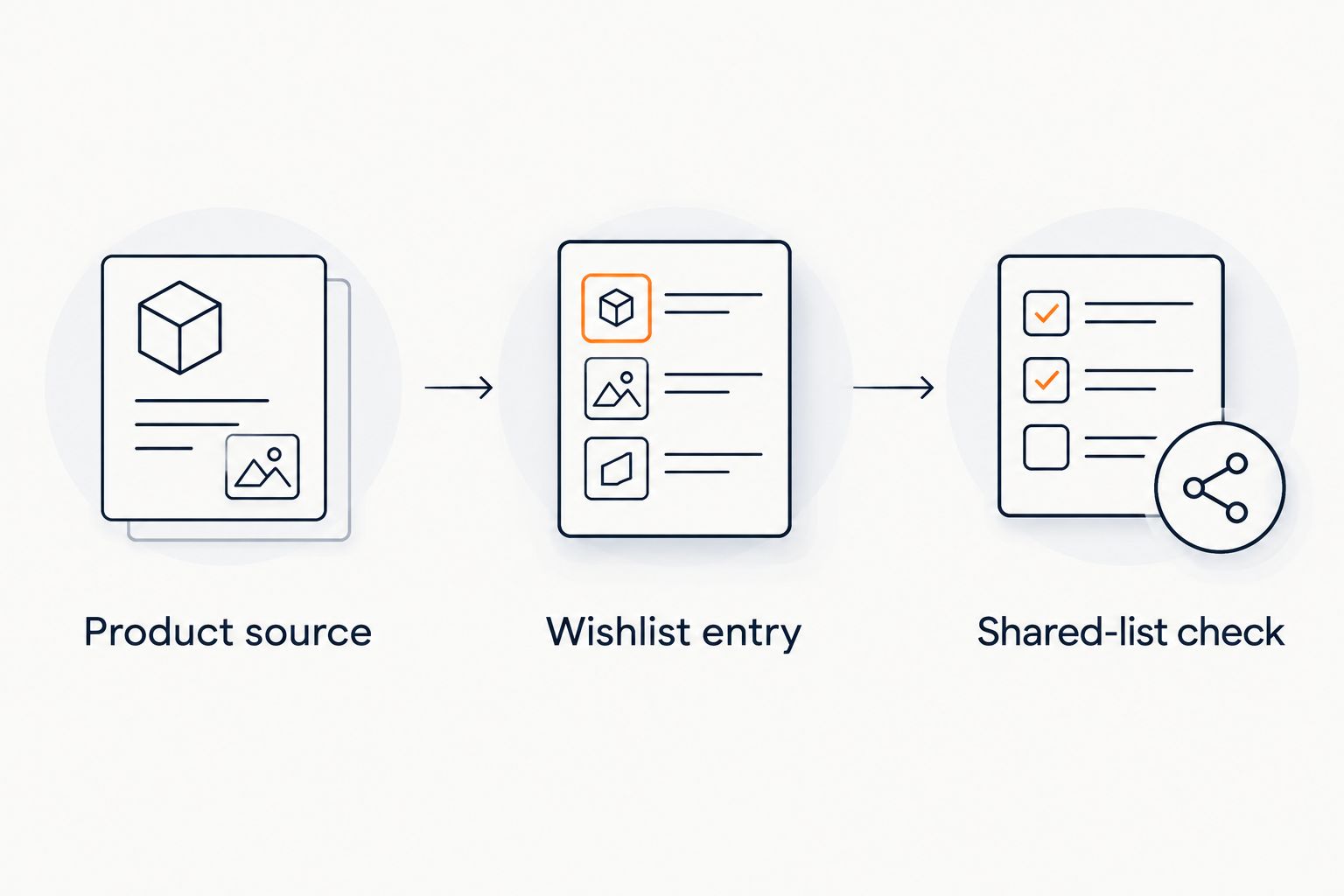
The shared list should stand on its own. Someone receiving it does not need the original Reel, an explanation of every tag, or a folder of screenshots to work out what you meant.
Keep a discovery bookmark or build a gift list?
An Instagram saved post and a universal wishlist serve different purposes. Keep the post for inspiration; use the wishlist when another person needs a clear shopping destination.
| Option | Best for | Benefit | Limitation |
|---|---|---|---|
| Instagram saved post | Remembering styling and discovery context | Keeps the original content available as a reference | The recipient still needs to identify the exact retailer item |
| LMK cross-store wishlist | Sharing gift ideas across retailers | Combines retailer items in one list and supports automatic price-drop alerts | You still need to verify the retailer match and communicate variant preferences |
The choice is not about replacing one tool with the other. An outfit post contains context that a product entry does not. A wishlist organizes buying information that a saved post does not reliably communicate by itself.
For your 2026 list, use both only when both have a purpose. Keep the Instagram bookmark privately for inspiration, then give the recipient the verified shopping list rather than a bundle of duplicate references.
Repeat the workflow when you discover another item
The adjacent workflow is adding new discoveries to an existing shared list. This is a repeatable manual process, not a trigger that watches your Instagram activity.
- Open the new product tag and verify its retailer destination.
- Compare the item with entries already on your wishlist. Look for the same product under a slightly different title or photo.
- Add the item only after confirming that it is a new choice, not another post featuring something you already saved.
- Recheck any variant preference and the retailer destination.
- Reopen the recipient view to confirm that the new entry is clear before notifying gift-givers.
Expected result: Your existing list gains a verified item without accumulating duplicate discoveries or unclear alternatives.
Keep separate retailer listings only when the distinction matters. If you deliberately want to show alternative sellers, label them clearly using whatever explanatory controls are available, or explain the alternatives in your message.
For a broader collection, the workflow for combining Amazon, Target, Walmart, and Etsy into one gift list extends the same retailer-first approach beyond Instagram discoveries.
Troubleshooting
The tag opens a collection instead of the product
Find the exact item within the retailer's collection before saving it. Match the name and identifying details to the tagged product. Do not save the collection as though it were the individual item.
The copied link returns to Instagram
You copied the discovery source rather than the retailer destination. Open the retailer product in your browser, inspect the address, and copy that destination. Retest it before adding the item.
The saved entry shows the wrong variant
Return to the retailer page and verify your selection. If reopening the URL does not retain it, communicate the required variant in readable text. Do not rely on the product photo to distinguish similar colors or sizes.
The shared link opens an editing or account view
Obtain the link through the list's sharing controls rather than reusing an arbitrary browser address. Test it outside your editing session. Check the available privacy settings if the recipient view still does not match your intention.
The entry looks right, but its destination has changed
Revisit the retailer page and compare the item identity again. Correct or remove an entry that no longer points to your intended product. A familiar thumbnail is not a substitute for a working destination.
Customize your workflow
Once the test item works, repeat the same checks for the rest of your discoveries. Group the list around the recipient's task: choosing a birthday present, finding a housewarming gift, or reviewing your personal ideas.
LMK wishlist price tracking supports the buying side through automatic price-drop alerts. It does not replace product verification: the right destination and a clear variant preference still matter when someone chooses a gift.
The guide to wishlist price-drop notifications explains that next step. Keep alert expectations separate from the Instagram handoff; saving a post is not the same action as adding a retailer item to a tracked wishlist.
For 2026 gift planning, review the shared list before sending it again for a new occasion. Remove ideas you no longer want and check the remaining destinations. A shorter current list beats a longer list that asks recipients to guess.
FAQ
How do I turn an Instagram product tag into a wishlist item?
Open the tagged product's retailer page, verify the exact item, and add that retailer product to your wishlist. Check the saved destination and recipient view before sharing the list.
Does this workflow automatically import my Instagram saved posts?
No, this guide uses a manual handoff from Instagram to a retailer product page. It does not describe an automatic import of saved posts, likes, or tags.
Should I save the Instagram post link or the store product link?
Use the store product link for the wishlist's shopping destination. Keep the Instagram post separately if its styling or context helps you remember why you liked the item.
Is LMK better for sharing gifts than an Instagram saved post?
LMK is better suited to a cross-store gift list, while an Instagram saved post preserves discovery context. You still need to verify the retailer product and make your preferred variant clear.
What should I do if the product tag leads to the wrong item?
Find and verify the correct retailer product before adding it. If you cannot establish an exact match, leave it out rather than giving the recipient an uncertain destination.
How do I make sure someone buys the right size or color?
State the required size or color in readable text using the available list controls or your accompanying message. Reopen the retailer link to check whether it preserves your selection.
Can my Instagram finds become a wishlist with price-drop alerts?
Yes, verified retailer items can form an LMK wishlist with automatic price tracking and drop alerts. The Instagram post remains the discovery source, not a substitute for the retailer item.
One last thing
Test the product link after choosing a variant, not just before. A page can show your selection while keeping an address that does not preserve it. Reopen the destination and check what a recipient actually sees.
That final check turns an attractive Instagram find into a useful gift request. The recipient needs the correct item and a clear preference—not your entire discovery trail.